Unit 1
Sprites and events
Make characters on a Scratch stage react to keys, clicks and messages, and see why a program that waits for events feels alive.
Read
A program that listens
Kabir builds his first Scratch project: a cat standing on a stage. He clicks the green flag and... nothing. The cat just stands there. "Where is the game?" asks his sister Anaya.
"The cat doesn't know when to do anything," says Kabir. "I only told it what to do. I forgot to tell it what to wait for."
That one idea, a program that waits and then responds, is what this unit is about.
Sprites, blocks and scripts
In Scratch, a sprite is a character or object on the stage: a cat, a drum, a rocket, a sun. Each sprite has its own scripts. A script is a stack of blocks that snap together like LEGO bricks. Blocks have colours that tell you their job: blue for motion, purple for looks, pink for sound, yellow for events.
The stage is the screen area where all the sprites live and move.
Events start scripts
An event is something that happens while the program is running: a key is pressed, the mouse clicks a sprite, the green flag is clicked, or a message arrives. A yellow hat block sits at the top of a stack and says which event starts it. The stack under it waits quietly until that event happens, then runs from top to bottom.
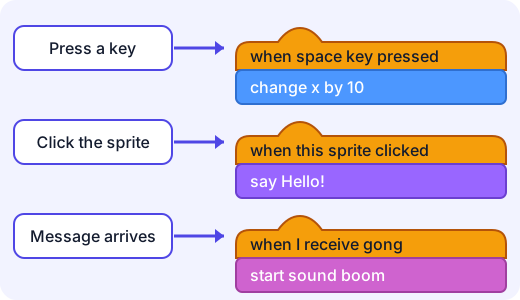
Hat block It runs when... when green flag clicked the person clicks the green flag to start when space key pressed that key is pressed (you choose the key) when this sprite clicked the person clicks or taps this sprite when I receive (message) any sprite broadcasts that message Example. Kabir wants the cat to step right when the right arrow is pressed. He builds:
when right arrow key pressedchange x by 10
Each time the key is pressed, the script runs once and the cat moves 10 steps to the right. Press five times and the cat has moved steps. If you do not press the key, nothing runs. The program is listening for the event.
Try it: Say what would happen if Kabir adds
say Hello!underchange x by 10. (Answer: each key press moves the cat and then makes it say Hello!, in that order.)Messages: sprites talking to each other
A sprite cannot reach inside another sprite's script. But it can send a message that every sprite can hear. The block
broadcast (gong)sends the message. Any sprite with awhen I receive (gong)hat block then starts its script.Anaya builds a toy. A Cat sprite and a Drum sprite:
- Cat:
when this sprite clicked, thenbroadcast (gong) - Drum:
when I receive (gong), thenstart sound (boom)
Click the cat and the drum booms. Click the drum itself and nothing happens, because the drum's script is waiting for the message, not for a click.
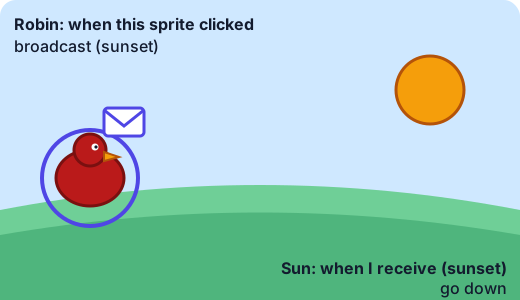
Many sprites can listen for the same message, and all of them respond. That is how one click can make a whole scene change.
Example. A doorbell project.
Sprite Script Button when this sprite clicked, then broadcast (ring) Bell when I receive (ring), then start sound (ding) Dog when I receive (ring), then say Woof! for 2 seconds One click on the Button sets off both the Bell and the Dog. Neither one needed to know about the other. They only listen for
ring.Mistakes to look for
- No hat block, no event. A stack of blocks with no hat on top never runs by itself. If a script seems dead, check that it starts with an event.
- The message name must match.
broadcast (Ring)does not startwhen I receive (ring). Pick the same name from the menu. - An event runs a script once. Pressing a key does not keep the cat moving forever. Each press runs the script one time. (Making something repeat is the next unit.)
- Several scripts can wait for the same event. Two sprites with
when space key pressedboth run when you press space.
Why this matters
Almost every app you use is waiting for events: a game waits for a tap, a calculator for a button, a music player for you to press play. Writing code that responds to events is how programs get to feel alive instead of just running by themselves from start to finish.
Go to the next activity and wire up a stage yourself.
Lab
Wire up the stage
Robin the bird and the Sun are on the stage, but they do nothing. Build scripts for each of them, then test them by pressing keys and clicking the sprites.
Your goals
- Make Robin move right when the right arrow key is pressed.
- Make Robin say Hello! when Robin is clicked.
- Make the Sun go down when Robin is clicked, using broadcast and when I receive.
The interactive lab opens once you register. Register to do this.
Activity
Build a click-and-key project
Build your own small Scratch project in which sprites respond to a key, a click and a message. About 30 to 40 minutes. If you have no computer, you can do the same design on paper with sticky notes.
You'll need
- A computer or tablet with Scratch (free, from MIT; you can use the editor without making an account)
- A grown-up nearby, especially if you want to save or share online
- Paper and pencil to plan first (or sticky notes in three colours for the paper version)
Steps
- Plan on paper first. Choose a scene with two or three sprites, for example a Drum and a Cat, a Doorbell and a Dog, or a Moon and a Star. Write one line for each sprite saying what it does and what event starts it.
- Open Scratch and make a new project. Choose your sprites (or paint your own) and a backdrop.
- Key event: give one sprite a script that starts with when (right arrow) key pressed and moves it. Test by pressing the key several times and counting the movement.
- Click event: give a sprite a script starting with when this sprite clicked that makes it say something or play a sound. Test it by clicking.
- Message event: pick one sprite to broadcast a message (use a clear name like ring or sunset). Give a second sprite a when I receive script for that message. Test it. Then add a third sprite that also receives the same message.
- Break it on purpose: remove the hat block from one script, or rename a message so it does not match. Watch what happens, then fix it.
- Show someone your project and explain which event starts each script.
Safety
- Take a screen break at least every 30 minutes; stand, stretch and look at something far away.
- Do not put your full name, school, address or photo in a project name, a sprite or a backdrop.
- Ask a grown-up before creating an account or sharing a project online. You do not need either for this activity.
Keeping a log of the activity is for registered learners. Register to do this.
Quick check
Sprites and events check
Eight questions about events, hat blocks and messages.
1.Which of these blocks starts a script when something happens?
- move 10 steps
- when space key pressed
- say Hello!
- turn 15 degrees
Choose one
2.Which of these can be events that start a script? Pick all that apply.
- The green flag is clicked
- The player clicks a sprite
- A broadcast message arrives
- A sprite moves 10 steps
- A sprite says Hello!
Choose all that apply
3.You press the space key once. What happens?
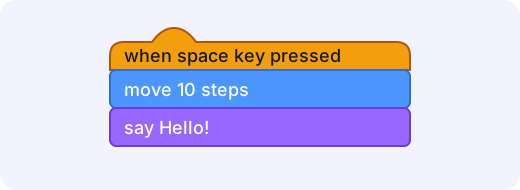
- The sprite moves 10 steps and then says Hello!
- Nothing, until the green flag is clicked
- The sprite keeps moving until you press space again
- The sprite only says Hello!
Choose one
4.A sprite starts at x = 0. Its script is "when right arrow key pressed, change x by 10". How many times must you press the right arrow to get it to x = 50?
Answer with a number
5.The Cat has "when this sprite clicked, broadcast (gong)". The Drum has "when I receive (gong), start sound (boom)". You click the Drum, not the Cat. What happens?
- The drum booms, because it is the one that makes the sound
- Nothing happens, because the Drum is waiting for the message gong, which only the Cat sends
- The Cat broadcasts gong and then the Drum booms
Choose one
6.Put these in the order they happen.
- The Drum receives gong
- The Cat's script broadcasts gong
- The player clicks the Cat
- The Drum plays its sound
Put these in order
7.What is the name of the block that sends a message to all the sprites?
Answer with a word or phrase
8.Match each hat block to the thing that makes it run.
- when green flag clicked
- when space key pressed
- when this sprite clicked
- when I receive (ring)
Match each to: The person starts the project · Some script broadcasts ring · The person clicks or taps the sprite · The person presses that key
Answering and checking are for registered learners. Register to do this.
Quick check
New puzzles
Use events and messages in situations you have not seen before.
1.In a game, tapping the Frog should make it jump, and a Splash sprite should appear at the same moment. Which design works?
- Frog: when this sprite clicked, broadcast (jump). Splash: when I receive (jump), show.
- Frog: when this sprite clicked, show. Splash: when this sprite clicked, jump.
- Frog: when I receive (jump), broadcast (jump). Splash: when green flag clicked, show.
Choose one
2.The Dog has "when space key pressed, say Woof!". The Bird has "when space key pressed, change y by 20". You press space once. What happens?
- The Dog says Woof! and the Bird moves up, because both scripts wait for the same event
- Only the Dog responds, because it was made first
- Nothing, because two sprites cannot use the same key
Choose one
3.A sprite starts at x = 0. One script says "when right arrow key pressed, change x by 10". Another says "when left arrow key pressed, change x by -10". You press the right arrow 7 times and the left arrow 3 times. What is x at the end?
Answer with a number
4.Mei wants her rocket to go up when she presses the up arrow. She snaps together "change y by 10" and "play sound whoosh", but the stack has no block on top of it. She presses the up arrow. What happens?
- Nothing. The stack has no hat block, so nothing makes it run.
- The rocket goes up, because up arrow is the obvious key
- Only the sound plays
Choose one
5.A "Reset" button sprite should make the Cat, the Dog and the Bird all go back to their start positions when clicked. What is the neatest way to build it?
- Reset: when this sprite clicked, broadcast (reset). Cat, Dog and Bird each get: when I receive (reset), go to start.
- Put three "go to" blocks inside the Reset sprite's script, one for each animal
- Give each animal a "when green flag clicked" script and tell the player to restart
Choose one
Answering and checking are for registered learners. Register to do this.
Your turn
Explain events to a friend
A friend in Class 2 has never used Scratch. Explain events to them in your own words.
- What is an event? Give two different examples of events and say which hat block each one uses.
- Pick a toy or game that you invent (not a doorbell or a drum). Describe two sprites in it and say how one sprite uses a broadcast so the other one responds. Write the scripts as short lists of blocks.
- Your friend says: "I made a stack of blocks but it never runs!" Give two reasons this could happen and how to fix each.
How it's judged
- Explaining events
- Design with a broadcast
- Fixing a stuck script
Writing and submitting your answer is for registered learners. Register to do this.
Like what you see?
Register for free to answer the quick checks, do the activities and save your work. Your work is saved on your device and syncs to your account.